
CaCcut Pro New Version 2026 Edit Smarter, Go Viral Faster
CapCut New Version brings AI captions, trending templates, speed curves, green screen, keyframes and smooth HD export. Discover every feature and edit like a pro on Android, iOS and PC in 2026.
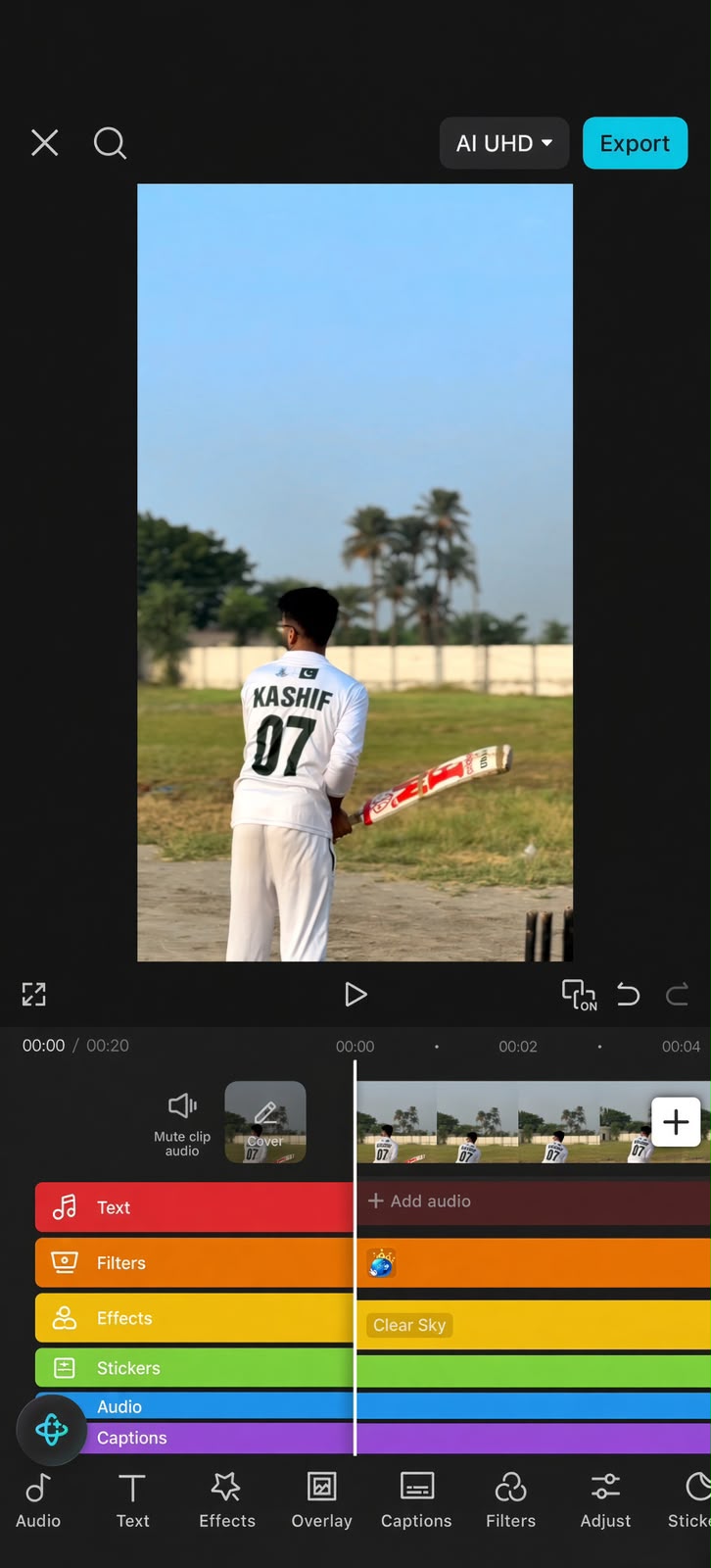
PreviewCapCut app screenshots
Why choose itKey CapCut Features
AI Auto Captions
Turn speech into editable subtitles in a few taps, then fix names and style the text to match your video.
Ready-Made Templates
Drop your own clips into trending edits and export in minutes. Many templates are free; some carry a Pro tag.
Keyframe Animation
Animate position, size, rotation and opacity over time for smooth zooms, pans and text motion.
Flexible Export
Pick resolution and frame rate before export. 2K and 4K options depend on your device, project and plan.
Chroma Key & Background Removal
Remove a green screen with chroma key, or cut out a person automatically. Results depend on lighting and contrast.
Mobile, Desktop & Web
Edit on Android, iPhone, Windows, Mac or in a browser. Cloud drafts help you continue a project on another device.
CapCut new version updates turn a simple phone editor into a surprisingly complete video studio. You get a multi-track timeline, AI captions, templates, keyframes and smart audio tools in one app. This guide explains what each feature does, when to use it and where its limits are.
Whether you make TikToks, Reels, YouTube Shorts or longer tutorials, the sections below will help you edit faster. Each tool is explained in plain language, with practical examples.
What Is CapCut?
CapCut is a video editing app made for short-form social content. It runs on Android, iPhone, iPad, Windows, Mac and in a web browser. Most core editing tools are free, while a Pro plan adds premium assets and extra AI features.
Beginners usually start with ready-made templates. Meanwhile, experienced editors build videos from scratch with layers, keyframes and speed curves. Both workflows live in the same app.
Key Features of the CapCut New Version
CapCut new version releases keep the same core layout but add smarter tools with each update. The exact features vary slightly by device, region and app version. Below are the tools you will use most.
Multi-Track Timeline
The timeline holds your main video, overlays, text, stickers, music and sound effects on separate tracks. You can stack a B-roll clip above your main footage and mute its audio. As a result, even a phone edit can look like a properly layered video.
Trim, Split and Quick Cuts
Drag the edges of a clip to trim it, or tap Split at the playhead to cut it in two. Newer versions also offer one-tap buttons that delete everything left or right of the playhead. The audio waveform shows where speech starts, which makes removing pauses much easier.
Speed Control and Speed Curves
Normal speed changes the whole clip, for example from 1x to 2x. Speed curves change speed within a single clip. Presets such as Montage, Hero Time, Bullet and Jump Cut create dramatic slow-to-fast effects in one tap.
On desktop, you can drag curve points yourself for full control. If slow motion looks choppy, the Smooth slow-mo option with Optical Flow can fill in missing frames.
Keyframe Animation
Keyframes let you animate position, scale, rotation, opacity and color over time. You set a starting value, move the playhead, then change the value. The editor creates the motion between the two points automatically.
For example, a slow zoom on a product shot needs only two keyframes. One sets the normal size, and the second sets the zoomed-in size a few seconds later.
Text, Auto Captions and Text-to-Speech
You can add titles with custom fonts, colors, shadows and animations. Auto captions turn speech into editable subtitles. On mobile, tap Captions, choose Auto captions, confirm the spoken language and tap Generate.
Always read the captions once before exporting. Names, numbers and slang are often misheard. Text-to-speech does the reverse and reads typed text aloud in different voices.
Templates
Templates copy the cuts, transitions and timing of a popular edit. You simply replace the sample clips with yours. Many trending TikTok videos show a CapCut template label, which opens the same template in the app. Our CapCut templates guide explains the full process.
Audio Tools
The app includes a music library, sound effects, voiceover recording, fades and volume controls. In addition, noise reduction and voice enhancement clean up recordings made in noisy rooms.
Beat marking is especially useful for music edits. Select the music track and use the beat marker option. The editor places markers on each beat, so your cuts land exactly on the rhythm.
Filters, Color and Adjustment Layers
Filters apply a ready-made look in one tap. For finer control, the Adjust panel changes brightness, contrast, saturation, temperature and more. An adjustment layer applies the same changes to every clip underneath it, which keeps colors consistent.
Chroma Key, Masks and Background Removal
Chroma key removes a green or blue background, so you can place yourself in a new scene. Masks hide or reveal part of a clip in shapes such as circles or split lines. Furthermore, automatic background removal can cut out a person without any green screen.
However, results depend on your footage. Even lighting and clear contrast between subject and background give much cleaner edges.
Stabilization and Auto Reframe
Stabilization smooths shaky handheld footage. Auto reframe converts a landscape video into vertical 9:16 while keeping the main subject in frame. Therefore, one YouTube video can quickly become several Shorts or Reels.
Export Options
Before saving, you choose resolution and frame rate. According to CapCut's help center, 2K and 4K options depend on device hardware, project settings and app version. If these options are greyed out, your device or project is usually the reason.
Free vs. Pro Features
Most everyday editing tools work without paying. On the other hand, items marked with a Pro tag need a subscription to export without a watermark. Prices differ by country, so always check the price shown inside the app.
| Feature area | Free | Pro |
|---|---|---|
| Cutting, trimming, speed, text | Included | Included |
| Free templates, effects and music | Included | Included |
| Pro-tagged effects, templates and fonts | Preview, or export with watermark | Included |
| Advanced AI tools | Some limited or unavailable | More tools and higher limits |
| Cloud storage | Small allowance | Larger allowance |
In fact, many watermarks come from the default ending clip, not from Pro items. Scroll to the end of the timeline and delete that clip before exporting.
Supported Devices and Requirements
The CapCut new version runs on the platforms below. The figures below come from CapCut's own help and resource pages. Moreover, heavy AI tools and 4K export work best with at least 4 GB of RAM.
| Platform | Minimum version | Notes |
|---|---|---|
| Android | Android 8.0 or later | 4 GB RAM or more recommended |
| iPhone / iPad | iOS 13.0 or later | 4K export depends on the chip |
| Windows | Windows 10 or later | Intel Core i3, 4 GB RAM, 2 GB storage |
| Mac | macOS 10.15 or later | 8 GB RAM recommended |
For computer setup, read our CapCut for PC guide. iPhone users can follow the CapCut for iOS guide.
Tips to Edit Faster
These simple habits help you get more from the CapCut new version on any device.
- Plan your first three seconds; a strong hook keeps viewers watching.
- Set the aspect ratio before editing to avoid re-cropping later.
- Use beat markers for music edits instead of cutting by ear.
- Save caption and text styles you like, then reuse them.
- Export a short test clip before exporting a long project.
- Keep a few gigabytes free so exports do not fail.
Common Problems and Quick Fixes
Although the app is generally stable, a few issues come up often. Most are solved by restarting the app, freeing storage and updating to the latest build.
- Export stuck or failing: see our guide to fixing CapCut export errors.
- Template missing: templates vary by region, account and app version.
- Lag on long projects: split the timeline into shorter parts.
- No sound: check that the clip and track are not muted.
Android users should be careful with system settings. Clearing app data can delete local drafts, so clear only the cache unless your projects are backed up.
Final Thoughts
The CapCut new version packs professional-style tools into an app that beginners can learn in a day. Start with templates and auto captions, then move to keyframes and speed curves. Finally, compare it with a simpler rival in our CapCut vs InShot guide to decide which editor suits you best.
DownloadCapCut App Information
votes · rated by users
FAQCapCut FAQs
Is CapCut free to use?
Yes. You can download CapCut and edit videos for free. Pro is an optional paid subscription that adds premium effects, templates, extra AI tools and more cloud storage. Prices vary by country, so check the price shown in the app before subscribing.
How do I export a CapCut video without a watermark?
Most watermarks come from the default ending clip. Scroll to the end of the timeline, tap the ending clip and delete it before exporting. If you used a Pro-tagged effect, template or font, replace it with a free one or subscribe to Pro.
How do I install CapCut on iPhone or iPad?
Open the App Store, search for CapCut and tap Get. According to CapCut, the app needs iOS 13.0 or later. If the store says the app is not available, it may be restricted in your region or your device may be too old.
Is it safe to install a CapCut APK from other websites?
We recommend Google Play instead. Modified APK files that claim to unlock Pro for free are not reviewed by Google, can contain malware and may get your account restricted. Store versions also update automatically.
Can I use CapCut on a Windows PC or Mac?
Yes. CapCut offers a free desktop editor for Windows 10 or later and macOS 10.15 or later, available from capcut.com. You can also edit in a web browser without installing anything.
Is this the official CapCut website?
No. CapCut New Version is an independent guide and is not affiliated with CapCut or ByteDance. We do not host app files; our download buttons send you to Google Play, the App Store or capcut.com.
BlogLatest CapCut guides
CapCut AI Tools Explained: Captions, Auto Cut, Background Removal and More
What each CapCut AI tool does, how to use it, and which ones need Pro.
How to Fix CapCut Export Errors on Android, iPhone and PC
Export stuck or failing? Fixes for every common CapCut export problem, grouped by symptom and device.
CapCut vs InShot: Which Video Editor Should You Use?
Editing tools, watermarks, pricing and platforms compared, with a clear recommendation for each type of creator.