
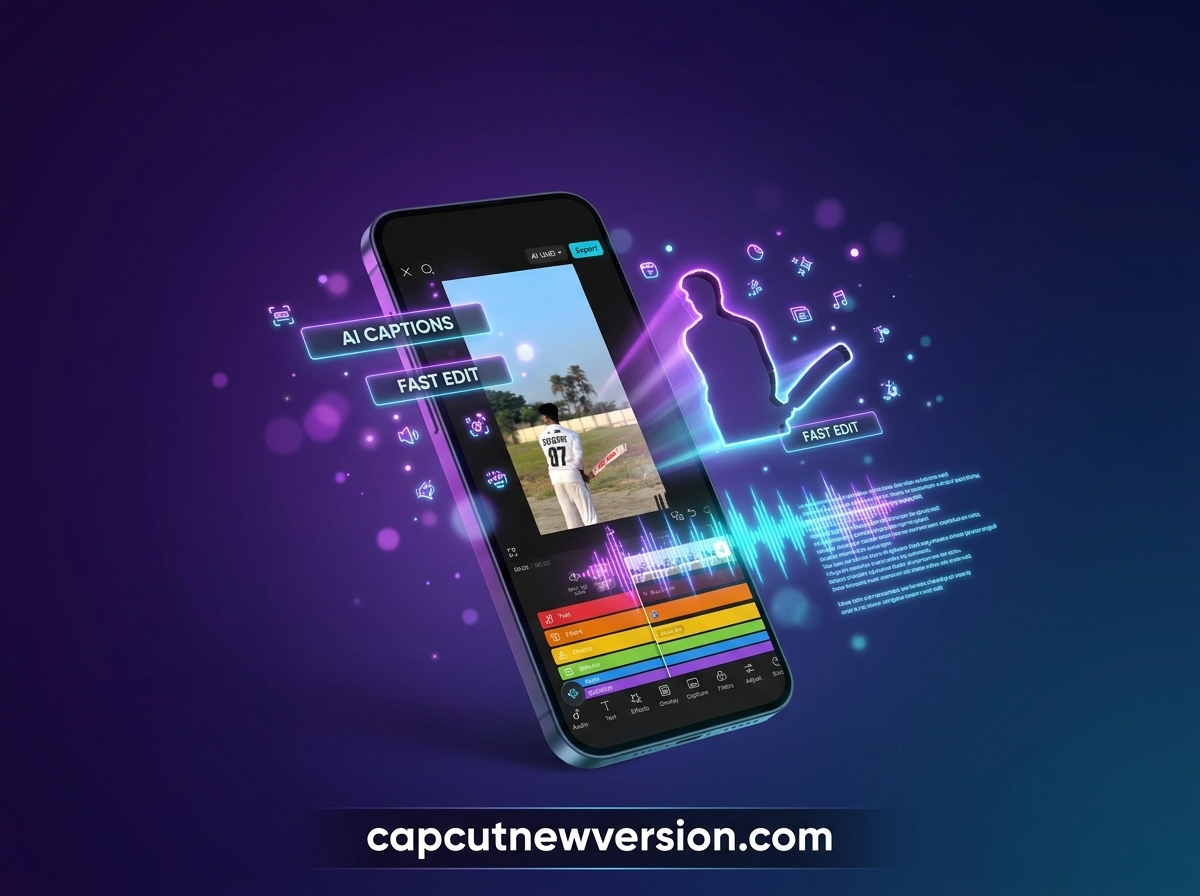
CapCut AI tools handle the slow parts of editing for you. They can write captions, cut pauses, reframe videos and remove backgrounds in seconds. This guide explains what each tool does, how to use it and where it still needs a human touch.
Tool names and availability differ by device, region and app version. Some tools are free, while others need a Pro subscription. Therefore, if you cannot find a tool, update the app first and check the Pro tag.
How CapCut AI Tools Save Editing Time
CapCut AI tools work by analysing your footage, speech or music. They then make the edit automatically, and you fine-tune the result. For example, captions for a two-minute talking video take seconds instead of twenty minutes of typing.
However, AI is not perfect. Treat every automatic result as a first draft and review it before exporting.
Auto Captions
Auto captions convert speech into timed subtitles. On mobile, tap Captions, choose Auto captions, confirm the spoken language and tap Generate. You can then edit any line, change timing and apply a style.
On desktop and web, extra options may appear. These include bilingual subtitles, keyword highlighting and SRT export, depending on region and version.
- Keep captions to one or two short lines.
- Place them in the lower third, away from faces.
- Check names, numbers and brand terms carefully.
Auto Cut
Auto Cut trims and arranges raw footage automatically. It can follow music beats, speech pauses or a script. In some regions, it appears as Beat Cut, Smart Cut or Rhythm Edit.
It works best with clear audio and a steady beat. As a result, it is ideal for travel montages, event highlights and quick product clips.
Remove Filler Words and Transcript Editing
The desktop editor can transcribe your video and show it as text. Deleting a sentence from the transcript removes that part of the video. In addition, it can detect filler words such as “um” and long pauses, then remove them in one step.
This is especially useful for tutorials, podcasts and talking-head videos. Still, watch the final cut, because aggressive removal can make speech sound rushed.
Auto Reframe
Auto reframe changes the aspect ratio while keeping the main subject in frame. For instance, a 16:9 YouTube video can become a 9:16 Short. The tool follows the speaker or main action as it moves.
Background Removal and Auto Cutout
Background removal separates a person from the background without a green screen. You can then place them over a new image, video or color. Moreover, auto cutout can remove unwanted objects in some versions.
Edges look cleaner when the subject is well lit and stands out from the background. Busy backgrounds and loose hair are harder for the AI to handle.
Text-to-Speech and Voice Tools
Text-to-speech reads your typed text aloud in a range of voices and languages. It is handy for faceless videos and quick explainers. Meanwhile, voice enhancement and noise reduction clean up audio recorded in noisy rooms.
Script to Video
Script to Video, sometimes listed with an AI writer, turns an idea into a short video. It drafts a script, then adds stock clips, a voiceover, captions and music. Furthermore, you can replace any clip or line before exporting.
The output is a useful starting point, not a finished video. Add your own footage and voice where possible to keep it original.
Smart Search and Quality Enhancement
On desktop, smart search can find clips by objects, people, speech or places. That saves time when you have hours of footage. Additionally, enhancement tools can sharpen or upscale low-quality clips, although results vary with the source.
Free vs. Pro AI Features
Many basic AI features are available for free, sometimes with usage limits. On the other hand, advanced tools and higher limits usually need CapCut Pro. CapCut has also said that some tools may move to Pro over time. Check the Pro tag in the app before building a project around a tool.
Tips for Better AI Results
- Record clean audio with an external mic if possible.
- Use good lighting for background removal.
- Review captions line by line before posting.
- Keep AI-generated scripts short and add your own voice.
- Export a short test before exporting a long project.
Frequently Asked Questions
Are CapCut AI tools free?
Some are free, and some need Pro. Free tools may have monthly limits that change over time.
Why can’t I find an AI tool in my app?
Tools roll out gradually and vary by region, device and version. Update the app, then check the desktop or web editor.
Do AI captions support my language?
Auto captions support many languages. Select the spoken language before generating to get the best accuracy.
Conclusion
Used well, CapCut AI tools cut hours of manual work from every project. Although they still need a quick review, they let you focus on ideas instead of repetitive edits. Finally, explore the rest of the editor in our CapCut features guide. For failed renders, see our export error guide.